DPI Calculator
Enter any two values — the calculator finds the third. See exactly how big your image will print at any DPI.
This is a calculator, not a DPI changer. It does the arithmetic between pixels, inches, and DPI. It never opens or rewrites a file. To set the density tag on a JPG or PNG, use the Image DPI Changer.
Solving for print size — inches = pixels ÷ DPI. Change any two groups to recalculate the third.
Print size at common DPI
| At 72 DPI | At 150 DPI | At 200 DPI | At 300 DPI | At 600 DPI |
|---|---|---|---|---|
| 41.67 × 27.78 in | 20.00 × 13.33 in | 15.00 × 10.00 in | 10.00 × 6.67 in | 5.00 × 3.33 in |
Common print sizes
Pixels needed to print these standard sizes without upscaling. 300 DPI is photo-lab quality; 150 DPI is the usual floor for large-format work viewed from a distance.
| Print Size | Pixels needed at 300 DPI | Pixels needed at 150 DPI |
|---|---|---|
| 4×6 in | 1200×1800 | 600×900 |
| 5×7 in | 1500×2100 | 750×1050 |
| 8×10 in | 2400×3000 | 1200×1500 |
| 8.5×11 in (Letter) | 2550×3300 | 1275×1650 |
| 11×14 in | 3300×4200 | 1650×2100 |
| A4 (210×297 mm, ≈8.27×11.69 in) | 2480×3508 | 1240×1754 |
Plug any of those pixel counts into the calculator with a different DPI to see the print size change. A 2400×3000 px file is an 8×10 at 300 DPI and a 16×20 at 150 DPI — same pixels, twice the paper.
The DPI formula
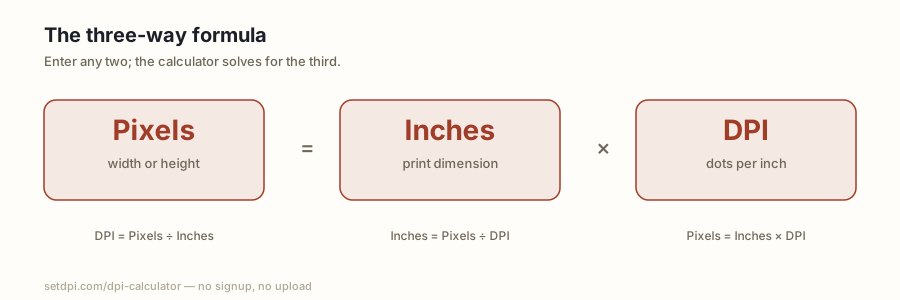
Three numbers, one relationship. Rearrange to solve for whichever you do not have:
- DPI = pixels ÷ inches
- inches = pixels ÷ DPI
- pixels = inches × DPI
A 3000 px-wide photo printed 10 inches wide is 300 DPI. The same pixels printed 41.67 inches wide are 72 DPI. Nothing about the picture changed except how tightly the printer is asked to pack those pixels.
Width and height use the same DPI. If a file is 3000×2000 px at 300 DPI, it prints 10×6.67 in. Centimetres are inches × 2.54.
This arithmetic is what print shops mean by “enough resolution.” A 1200×1800 px image is a legitimate 4×6 at 300 DPI and is not a legitimate 16×24 at 300 DPI, tag or no tag. The Image DPI Changer rewrites the density tag; it cannot invent pixels. Use this calculator first if you are not sure the file covers the print.
Common DPI values and when to use them
The number is a convention, not a quality slider. Pick the density the job actually needs, then confirm the pixel count covers the print at that density.
| DPI | Typical use | 3000 × 2000 px prints at |
|---|---|---|
| 72 | Screen / web (legacy Mac) | 41.67 × 27.78 in |
| 150 | Draft / large format | 20.00 × 13.33 in |
| 200 | Newsprint | 15.00 × 10.00 in |
| 300 | Photo quality | 10.00 × 6.67 in |
| 600 | Fine art / medical / line art | 5.00 × 3.33 in |
72 DPI — screen
The old Macintosh screen convention. Web exporters, screenshots, and AI image tools still write 72, or write nothing and let the viewer assume 72. Screens ignore the tag and paint pixels, so 72 is fine for anything that stays on a monitor. It becomes a problem only when a print workflow reads the file.
150 DPI — draft / large format
The usual floor for posters, banners, and booth graphics viewed from a few feet. A 24-inch-wide poster at 150 DPI needs 3600 px across. 300 DPI on that same poster would demand 7200 px and a much larger file for detail nobody can see from the aisle.
200 DPI — newsprint
Newspapers and uncoated stock often specify around 200 DPI because the paper and the press cannot hold a finer halftone. Sending 300 is harmless if the pixels are there; sending 72 on a news photo that will print 8 inches wide is not.
300 DPI — photo quality
The industry habit for photo labs, magazines, journals, ID portals, Amazon KDP, and Etsy printables. Dense enough that a 150-line halftone and normal viewing distance hide the pixel grid. Preflight software almost always checks this number. See Convert Image to 300 DPI to rewrite the tag once the pixel count already covers the print.
600 DPI — fine art / medical
Line art, hairline charts, and some medical or archival scans. Author guidelines often ask 600 for figures that are not photographs. A 600 tag on a soft photo does not add detail — it just claims a smaller print. Use 600 when the original actually has that many samples per inch, or when a portal will reject 300 on a chart.
If you need the stored tag on a real file, not the arithmetic, use the DPI Checker. For the vocabulary mix-up with PPI, see DPI vs PPI.
Print size calculator
Print size is pixels divided by DPI. That quotient is inches. Multiply inches by 2.54 to get centimetres. Width and height use the same DPI, so each axis is converted on its own.
- inches = pixels ÷ DPI
- cm = inches × 2.54
Worked example: a 3000 × 2000 px file at 300 DPI prints 10 × 6.67 in (3000 ÷ 300 = 10, 2000 ÷ 300 = 6.67), which is 25.4 × 16.9 cm. A second example: 1800 × 1200 px at 150 DPI prints 12 × 8 in (1800 ÷ 150 = 12, 1200 ÷ 150 = 8), which is 30.48 × 20.32 cm.
The calculator at the top of this page fills the print-width and print-height inch fields when you enter pixels and DPI, and shows the matching centimetre size on the result line.
How to calculate DPI from pixels and inches
DPI = pixels ÷ print inches. Enter any two of width in pixels, print width in inches, and DPI in the calculator at the top of this page; it fills the third. Example: 3000 px across a 10-inch print is 300 DPI. The same 3000 px on a 20-inch poster is 150 DPI. This page does not rewrite files — to set the tag after you know the number, use the image DPI changer on the homepage. Nothing is uploaded here or there.