DPI vs PPI — What’s the Difference, and When It Matters
DPI is print dots. PPI is pixels. In a JPEG or PNG they are the same metadata field. Here is when that mix-up is harmless, and when a press or a scanner still needs you to keep the words straight.
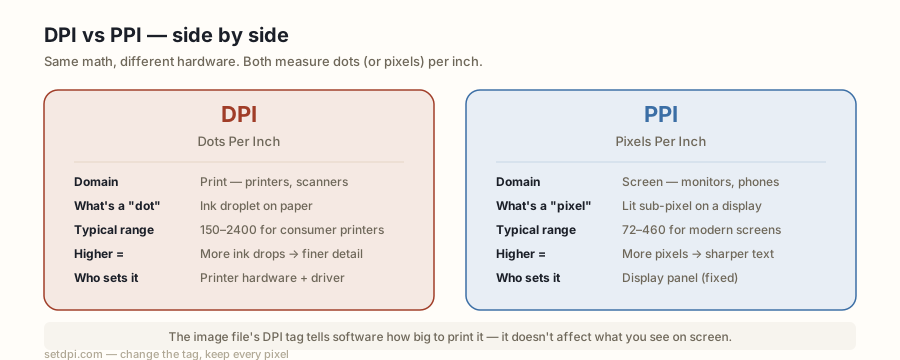
DPI vs PPI: the actual definitions
DPI means dots per inch. A dot, in the original printing sense, is a speck of ink, toner, or dye that a device puts on a substrate. A 1200 DPI laser printer can address 1200 of those specks in a linear inch. A 300 DPI requirement on a photo is a looser, file-level cousin of the same idea: “treat this picture as 300 samples in each inch of paper.”
PPI means pixels per inch. A pixel is a sample in a digital image or a physical element on a screen. A 254 PPI laptop panel has about 254 hardware pixels in each inch of glass. A file tagged 300 PPI is claiming that its pixels should be spaced 300 to the inch when someone turns them into marks on paper (or, more rarely, when a layout program sizes the picture).
So the textbook split is: DPI describes a printer’s dots, PPI describes pixels on a screen or in a file. That split is real in hardware. It is almost fictional in the metadata of a JPEG or PNG. Those formats store one pair of resolution numbers — EXIF XResolution / YResolution, JFIF density, PNG pHYs — and they do not label the pair “dots” or “pixels”. Software reads the same field and writes “DPI” or “PPI” according to the decade and the audience.
Why everyday mix-ups do not matter
If a client, a form, or a tutorial says “export at 300 PPI” and another says “300 DPI”, they are asking for the same tag. Set the density field to 300. Windows Properties will often show it as DPI. Photoshop’s Image Size dialog calls the box Resolution and offers pixels/inch. Preview on a Mac says pixels per inch. A print-shop preflight log may say DPI. All of them poked the same integer.
Screens ignore the integer entirely. A 4000-pixel-wide photo looks the same on a 109 PPI desktop and a 460 PPI phone, up to how the OS scales the window. The phone’s “460 PPI” is hardware. The file’s “72 DPI” is a leftover default. Neither number changes the other. This is why web designers stopped caring about the tag twenty years ago and why “save for web at 72 DPI” is a ritual, not a requirement. Browsers map image pixels to CSS pixels. They do not consult JFIF.
Photographers talking to other photographers can keep saying DPI for the file and PPI for the monitor and everyone in the room will understand. The harm starts only when someone treats the two hardware meanings as interchangeable — “my phone is 400 PPI so the photo is 400 DPI” — or when a scan is documented in the wrong unit. Those are the cases below.
When you do have to keep DPI and PPI apart
Printing. The press has a real DPI (or a stochastic dot size). The file has a PPI-style tag and a pixel count. Effective resolution on paper is pixels ÷ printed inches, regardless of the tag. If you drop a 1500-pixel image across 10 inches of a magazine page, you printed it at 150 PPI. Tagging the file 300 DPI does not make the press invent samples. The tag helps preflight and default placement; the layout width decides the effective number. If the shop says they print at 1440 DPI, they are describing nozzle addressability, not asking you to tag the photo 1440.
Scanning. Here DPI is the honest word. You are asking a sensor to take N samples per inch of the physical original. Scan a 4 × 6 in print at 300 DPI and you should get about 1200 × 1800 px. Scan it at 600 DPI and you get about 2400 × 3600 px — actually more information, because the sampler walked a finer grid. That is the opposite of “increasing DPI” on an existing file, which does not walk any grid at all. If a scanner wrote the wrong tag (a 600 DPI optical scan saved as 72), fixing the tag is correct and lossless; you are restoring the capture record, not pretending you scanned twice. If the scan was truly 200 DPI and you need 300, the honest move is to rescan, not to relabel.
On-screen design that will never print. Use pixels. A 32 px icon is a 32 px icon. Writing 300 DPI into its PNG does not make it sharper on a retina display and does not make it larger in a browser. High-DPI (the hardware kind) screens just have more device pixels per CSS pixel; you serve a 2× asset or an SVG. File DPI is not part of that pipeline.
Type and “DPI awareness” in operating systems. Windows DPI scaling (125%, 150%, 200%) is about how large the OS draws UI, not about JPEG metadata. Mixing those conversations is how people end up “increasing image DPI” to fix a blurry desktop screenshot of an app. The fix for a blurry screenshot is a larger capture or a vector source, not a 300 tag.
Conversion examples you can actually use
The only arithmetic that connects the terms in file metadata:
- inches = pixels ÷ (DPI or PPI tag)
- cm = inches × 2.54
- pixels needed = inches × desired DPI
- PNG
pHYspixels-per-metre = DPI ÷ 0.0254 (SetDPI writes this; the checker converts it back)
| You have | You want | Do this |
|---|---|---|
| 3000 × 2400 px file, tag 72 | An 8 × 10 in lab print | 3000/300 = 10 in, 2400/300 = 8 in. Tag 300. Enough pixels. Do not resample. |
| 800 × 600 px web image, tag 96 | An 8 × 10 in print at 300 | Need 2400 × 3000 px. You are short. Relabelling to 300 yields a 2.7 × 2.0 in print. Get a larger original or upscale elsewhere. |
| 4 × 6 in photo, scanned 600 DPI | To know the pixel size | 4×600 by 6×600 = 2400 × 3600 px. The 600 here is a capture DPI, not a screen PPI. |
| A form that says “300 PPI minimum” | To upload a JPEG | Set the density field to 300. Same field as 300 DPI. Then confirm pixels ÷ 300 ≥ the print size they listed. |
| A 27-inch 4K monitor (3840 px wide) | Its hardware PPI | 3840 / 27 ≈ 142 PPI. Unrelated to any photo you open on it. |
Notice that in four of the five rows the useful action is either “write 300 into the tag” or “count pixels”. The fifth row is hardware and never touches a file. That is the practical size of the DPI vs PPI distinction for anyone who is not designing a printer.
Check the number on your file, then change it if the job needs it
Because JPEG and PNG store one density pair under two casual names, the way to settle an argument is to read the file, not to debate vocabulary. The DPI Checker reads JFIF, EXIF XResolution, and PNG pHYs, shows pixel size, and converts to print inches and centimetres. If those structures are missing — true of most screenshots and many web downloads — it says so instead of inventing 72.
If the tag is wrong and the pixels already cover the print, rewrite it losslessly with the Image DPI Changer on the homepage, or jump to Convert Image to 300 DPI when that is the required number. If a portal rejected you for “DPI too low”, Increase Image DPI is the same rewrite with a longer warning that raising the tag is not an enlarger.
Keep the words straight when you are talking to a press operator or a scanner tech. Let them blur when you are filling a web form. And never let a vocabulary fight talk you into resampling a file that only needed its label fixed.
A little history, because the mix-up is inherited
Early Macintosh displays were 72 PPI so that one screen pixel matched one PostScript point (1/72 in). Early Windows displays were 96 PPI. Those two numbers escaped into every “default resolution” box in imaging software and never left. They describe 1980s monitors. They do not describe your phone, your 4K laptop, or the photo from your camera.
Printer marketing then used DPI for nozzle counts (300, 600, 1200, 2400, 4800). Camera and scanner marketing used megapixels and optical DPI. File formats, stuck in the middle, offered a single resolution field and let the applications pick a noun. Photoshop mostly said PPI. Consumer Windows said DPI. The internet said both, often in the same sentence. That is the mess this page is naming. It is not a new scientific disagreement; it is two industries sharing a unit and a leftover default of 72.
Once you see that, “what is the difference between DPI and PPI?” has a short answer and a useful one. The short answer: dots vs pixels, printers vs screens. The useful answer: in a JPEG or PNG they are the same metadata; 300 of either satisfies a 300 requirement; print size is still pixels divided by that number; hardware DPI/PPI is a different conversation. Check the file. Change the tag only. Leave the pixels alone unless you truly need more of them.