Image DPI for Websites
The DPI tag is metadata for printers. The web reads pixels. 72 versus 300 changes nothing on a screen — here is what actually makes a site image look sharp, and when a CMS still complains about the number.
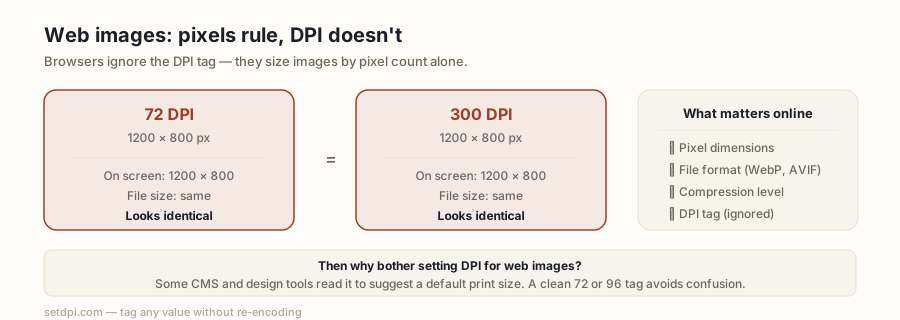
Browsers do not read the DPI tag
Image DPI for website pages is a print habit that never entered the rendering pipeline. When a browser paints a JPEG or PNG, it does not open JFIF density, EXIF XResolution, or the PNG pHYs chunk to decide how large or how sharp the picture is. It maps image pixels to CSS pixels. A 1200-pixel-wide photo in a 600-pixel-wide column is drawn 600 CSS pixels wide. Device pixel ratio then multiplies that box: 1× on an old laptop, 2× or 3× on a phone, so the GPU has device pixels to fill the glass.
The density integer is not on that path. A file tagged 72 and the same pixels tagged 300 occupy the same CSS box, the same device pixels, and the same bytes on the wire. Swap only the tag on one photo: the <img> does not change size, does not get crisper, and does not get heavier.
The 72 and 96 numbers in “Save for Web” dialogs are leftovers. Early Macintosh displays were 72 pixels per inch so one screen pixel matched one PostScript point (1/72 in). Early Windows displays were 96 PPI. Those were hardware facts about 1980s monitors, not a web standard. Phones often sit around 400+ PPI; a laptop panel is often 140–220. None of those hardware numbers are read from your photo. For dots versus pixels, see DPI vs PPI.
What actually controls how sharp an image looks on a site
Four things decide whether a picture looks crisp on a page. The DPI tag is not among them.
Pixel width versus display width. A 400-pixel image at 800 CSS pixels is stretched and looks soft. A 1600-pixel image at 800 CSS pixels gives a 2× screen a sample for every device pixel. Count the pixels you ship against the CSS width you use. A 4000-pixel original in a 640-pixel column is wasted weight, not extra sharpness.
2× assets and srcset. A retina phone has two or three device pixels per CSS pixel. Serve a 2× file, or a srcset with 2x / width descriptors, so those extra pixels have samples. That is the web’s “high-DPI,” and it is extra pixels in the file — not a rewritten density field. SVG scales without a 2× sibling; a photograph does not.
Compression quality. JPEG quality 40 looks mushy; 75–85 looks fine for most photos. Over-compressing makes a hero look cheap. Under-compressing makes a homepage weigh megabytes. Neither is a 72 tag. Tune quality at 1:1 on the real display width, not in a print dialog.
Format choice. WebP and AVIF give more sharpness per kilobyte than JPEG for camera photos. PNG is for flat colour, hard edges, or transparency — logos, UI, screenshots with text — not photographs. JPEG is the fallback. Pick the format for the content, not because of DPI.
Lazy loading is unrelated to DPI. loading="lazy" defers the request. It does not change pixels, density, or sharpness. Use it below the fold. Do not expect it to fix a blurry file.
The “72 DPI for web” myth
The ritual is File → Export → 72 DPI, because “that is web resolution.” It comes from those 1980s Mac screens. Photoshop’s Save for Web, default New-document resolution, screenshot tools, AI generators, and a long trail of tutorials copied 72 into every export preset. Windows often assumed 96. The numbers escaped into metadata and never left.
Exporting at 72 writes 72 into the density field. It does not downsample unless you also change pixel dimensions. It does not make the file smaller or the page faster. A 2400-pixel JPEG tagged 72 is the same grid as one tagged 300. Open both in a tab: they are indistinguishable. The browser never consulted the tag.
The harm is later, when the same file is sent to a printer or a CMS that reads the integer and says “72 DPI — too low.” The pixels were always fine. The label was a habit. If you are exporting only for a webpage, ignore the DPI box. Set pixel width, compression, and format. 72, 96, 150, and 300 all paint the same CSS pixels.
When a website or CMS DOES ask about DPI
Some WordPress plugins, Shopify themes, and “image SEO” validators open EXIF or JFIF and warn when density is 72, 96, or missing. They are reusing print rules on a screen job. The photo on the front-end does not get sharper when you satisfy them. The warning goes away when the integer matches what they expected — usually 300. That is a metadata checkbox, not a sharpness setting.
Upload portals built for print (journals, some DAM systems, media kits) check the tag before pixel count. A 4000-pixel press photo tagged 72 can fail; tagged 300 it passes. The pixels did not change. The form did.
Print-on-demand shops that sell the same image you show on the site are a third case. The product page displays pixels. The printer wants 300 DPI and enough pixels for the SKU (a 12×16 in print needs 3600×4800 at 300). Set 300 with the Image DPI Changer on the homepage when the file has to serve both. Changing the tag does not hurt the website copy and does not make the product page heavier.
If the pixels already cover the layout, rewrite the tag and move on. If a 200-pixel thumbnail is “low DPI,” the real problem is the pixel count. A 300 label will not invent a hero image.
A 300 DPI tag does not make a web image bigger or slower
Density metadata is a handful of bytes. JFIF stores two density integers. EXIF stores XResolution / YResolution. PNG pHYs stores pixels-per-metre. Rewriting those fields does not re-encode the picture. File size stays the same, plus or minus a tiny header if a missing tag is inserted. A 300 tag does not add CSS pixels, a 2× variant, or LCP cost. “Lower DPI so the site loads faster” mixes up print density with file weight. The slow parts are oversized pixel dimensions, quality 100, a PNG used for a photograph, and missing compression.
Prove it on your own file: drop the original and the retagged copy into the DPI Checker. Same pixel width, same file size, different density integer. That is the whole difference. If the tag is missing — true of many screenshots and social exports — the checker says so instead of inventing 72.
Quick checklist for web images
- Right pixel size — match CSS display width. Do not ship a 4000-pixel photo into a 640-pixel column.
- 2× variant — a
srcsetor a 2× file so retina screens have samples. - Compress — quality that looks good at 1:1 on the real display width, not the editor default of 100.
- Modern format — WebP or AVIF where you can; JPEG for photos as fallback; PNG for graphics and transparency.
- Alt text — describe the image. DPI is not alt text.
- Forget DPI unless a tool complains — then set 300 and move on. The screen never needed the number.